
Google Chrome
Google LLCCommunication
4.11.01M Reviews
- Version
- Varies With Device
- Installs
- 10.00B
- Age Rating
- Everyone
Screenshots
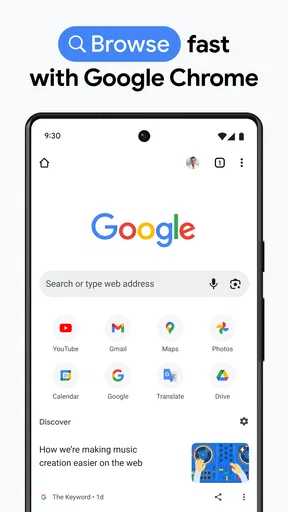
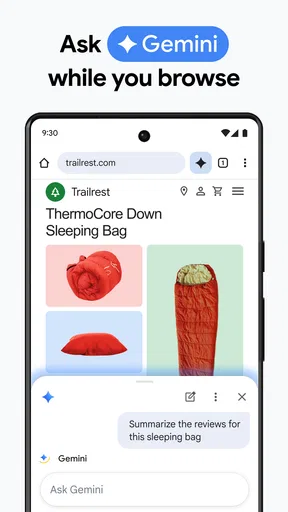
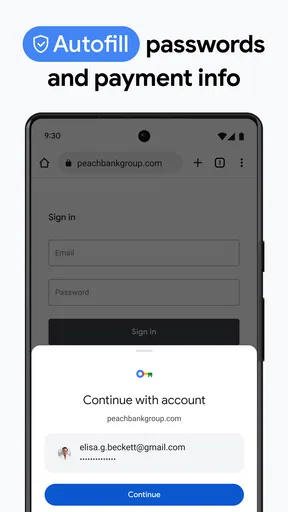
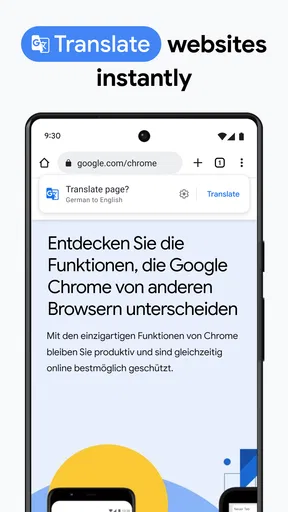
Our Review of Google Chrome
 Analysis by Appyee
My first useful moment with Google Chrome came when I opened a page I needed, found the information, and could get on with my day without learning a complicated new interface. That straightforward start is a big part of its appeal: it is a familiar mobile browser from Google LLC, available for free and rated for Everyone. I think it suits people who want to search and browse without much setup, though a few choices made early can make it feel more comfortable and secure.
What to expect from a familiar browser
Chrome is designed for everyday web use: entering a search, opening a page, moving between tabs, and returning to something you visited earlier. Its broad adoption is easy to understand; it has over ten billion installs and an average rating of 4.1 from around 49 million ratings. Those figures are context, not a promise that every page will load quickly on every phone. Your connection, the site itself, and the device all affect how browsing feels.
The app is free, and Google has offered it since February 2012. For a first-time user, that long presence means the basic browsing pattern is well established: tap the address bar, type a web address or question, and choose a result. I would not expect every feature to be immediately obvious, but the essentials are easy to find. Chrome is a sensible first choice if you already use Google services or want a browser that feels familiar on a phone and computer.
First setup: make the browser yours
When you open Chrome for the first time, start with the simple things. Try a search from the address bar, open a second tab, and look through the menu so you know where bookmarks and browsing options live. If you already have a Google account, signing in can help connect your browser activity across devices; you can also browse without making that the first task. I prefer to get comfortable with the basics before deciding which information I want synced.
Sync is useful when you deliberately want continuity, such as opening a saved bookmark on another device. It can also mean that browsing information is available in more places, so it is worth considering what you are comfortable sharing across your own signed-in devices. If you share a phone or computer, take a moment to check which account is active before saving a password or bookmark. That small habit can prevent the awkwardness of mixing personal browsing with someone else’s.
Your first successful browsing task
For a practical first test, search for a place, service, or topic you need today, open a useful result, and save it as a bookmark if you expect to return. Then open another tab to compare a second source rather than losing the page you already found. This is a simple way to learn Chrome’s core rhythm: search, check, keep what matters, and switch between pages. It works just as well for looking up a recipe while cooking as it does for checking travel details before leaving home.
I also find it helpful to treat bookmarks as a small collection of useful destinations rather than saving every page I happen to open. A few carefully chosen bookmarks are easier to revisit than a long, unorganized list. If you are signed in and have syncing enabled, those saved pages may be convenient on another device too; if not, they remain useful on the device where you saved them.
The Speed Factor
First off, let’s talk about speed. One of the standout features of Google Chrome is how quickly it loads web pages. Whether you’re streaming videos or just scrolling through your favorite blogs, everything happens in the blink of an eye. I’ve tried other browsers that claim to be fast, but Chrome really sets the bar high. It’s like having a sports car for your internet needs.
User Interface and Experience
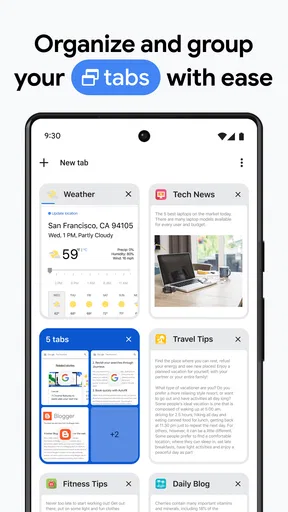
The user interface is another area where Chrome shines. It’s clean, intuitive, and just plain easy to use. You’ve got your tabs lined up at the top, a simple address bar, and boom—you’re ready to surf. Plus, I love how customizable it is. You can tweak it to suit your style, adding themes and extensions that make browsing feel personal and unique.
Extensions Galore
Speaking of extensions, this is where Chrome really hooks you in. The Chrome Web Store is like a candy shop for tech lovers. There are extensions for everything you can imagine—ad-blockers, productivity tools, and even games. I personally love using Grammarly for writing help and Pocket for saving articles to read later. It’s like having a Swiss army knife for your browser.
Syncing Across Devices
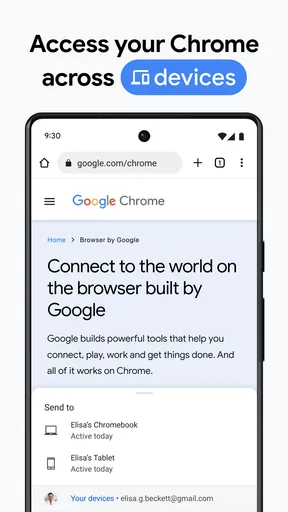
Now, if you’re like me and use multiple devices, you’ll appreciate how Chrome syncs everything seamlessly. You can access your bookmarks, history, and saved passwords across your phone, tablet, and computer without a hitch. It’s super convenient, especially when you need to pick up where you left off on a different device.
Privacy and Security
Privacy is a big deal these days, and Chrome takes it seriously. It offers features like incognito mode for private browsing and warns you if a site might be dangerous. While I do wish they’d improve on cookie management, it’s reassuring to know that Google is constantly working on enhancing security measures.
Performance and Resource Usage
Okay, here’s where things get a bit tricky. Chrome is notorious for being a bit of a resource hog. If you’ve got a ton of tabs open, you might notice your device slowing down. It’s like that friend who eats all the snacks at the party. However, with the recent updates, Google has made strides to reduce memory usage, which is definitely a step in the right direction.
Regular Updates
Google is always rolling out updates to make Chrome better. These updates not only improve security but also add new features and fix bugs. It’s like getting a new and improved browser every few weeks, which keeps things fresh and exciting.
When another browser may fit better
Chrome is a strong default, but it is not the right answer for everyone. If your main concern is limiting how much browsing information is connected to a Google account, you may prefer a browser whose privacy controls and account model better match your habits. If you mainly want to read pages with minimal extras, a simpler browser may feel less busy. And if your phone struggles with many open pages, keeping fewer tabs or trying a lighter alternative could be more useful than expecting any browser to fix the device’s limits.
Compared with the usual alternatives, Chrome’s clearest advantage is its close fit with Google services and its familiar desktop-and-mobile ecosystem. Other browsers can offer a different balance of privacy tools, interface choices, or integration with another platform. I would choose based on what you actually use: if your bookmarks and browsing are already tied to Google, Chrome reduces friction; if they are not, the best browser may simply be the one whose controls and defaults you understand and trust.
Small habits that make browsing smoother
One practical habit is to close tabs when a task is finished instead of treating the tab strip as a to-do list. When you need to keep a page, bookmark it; when you only need it briefly, let it go. This makes it easier to find the page you want and can help avoid the slowdown that sometimes comes with a crowded session. For research, I open a few relevant results, compare them, and save only the pages I expect to use again.
Another useful distinction is between a bookmark and browsing history. A bookmark is a deliberate reminder; history is a record that can help you retrace a visit. If you remember reading something but did not save it, history may help you find it again. For a page you rely on, though, I would not depend on remembering the date or scrolling through visits—save it intentionally. This is especially handy for school resources, appointment details, and instructions you will need more than once.
Private browsing and everyday expectations
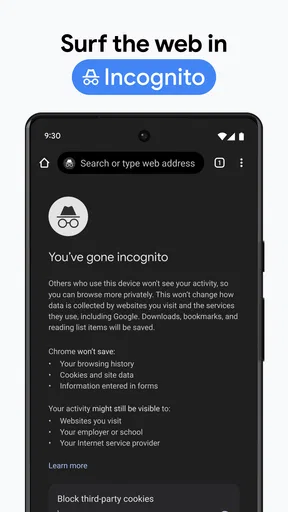
Incognito mode can be useful when you do not want a session to become part of the ordinary local browsing history on that device, such as when checking a page without changing recommendations in your usual session. I treat it as a limited convenience, not a cloak of invisibility. It does not make an online activity anonymous by itself, and it is not a substitute for thinking carefully before entering personal details. For routine browsing, the standard mode is simpler; use private browsing only when its narrower purpose fits.
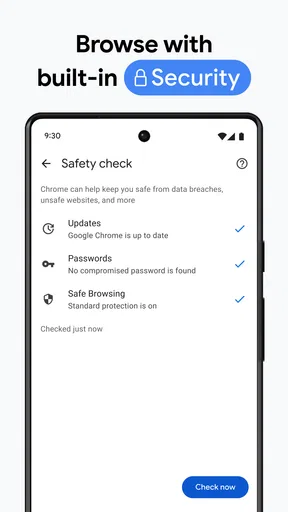
Security warnings are another reason I like having Chrome available, particularly when I have followed a link from a message and want to pause before proceeding. A warning is a cue to stop and check the address and source, not a reason to assume every unflagged page is trustworthy. I avoid rushing through alerts just to reach a page. That extra moment is useful for shopping, account sign-ins, or any page asking for sensitive information.
Extensions and the phone-versus-computer difference
The extension experience deserves a little care. Extensions can add helpful tools to Chrome on supported platforms, but the desktop browser and the phone app are not interchangeable in every respect. If you rely on a particular add-on at work, check that it is available where you plan to browse before building your routine around it. On a phone, the most dependable starting point is the built-in browser experience; on a computer, extensions can be a stronger reason to choose Chrome.
I also recommend being selective. An extension that asks for broad access may be more involvement than you need for a small convenience. Install only tools you recognize and will actually use, and revisit the list if your browser starts feeling cluttered. The benefit is not having the most add-ons; it is making one or two recurring tasks easier without adding more maintenance than they save.
A realistic day with Chrome
Imagine you are heading to an appointment and need to check the address, compare a transit option, and keep a confirmation page handy. I would search for the location, open the relevant directions in another tab, and bookmark the confirmation if I might need it later. If I use a second device, syncing can make that saved page easier to reach, provided I have chosen to sign in and enable it. The point is not that Chrome plans the trip for you; it keeps the ordinary web steps in one familiar place.
The same approach works for a recipe, a home repair guide, or a few sources for a school assignment. I keep the pages needed for the immediate task open, save the genuinely reusable ones, then close the rest. That simple workflow is more dependable than accumulating dozens of tabs and hoping I will remember why each one mattered.
Who will appreciate it most
I would recommend Chrome to a first-time browser user who wants an uncomplicated way to search, open sites, and save useful pages. It is also a natural fit for someone who already uses Google services on more than one device and values having familiar bookmarks and account features in the same ecosystem. With an average rating of 4.1 and around one million written reviews, it is clearly a widely used choice, though popularity alone should not decide whether its approach suits you.
I would be more cautious if you have an older or easily overwhelmed device, keep a large number of tabs open, or want a browser designed around a different privacy preference. In those cases, test your usual tasks rather than judging by a quick search: open the pages you actually need, see how manageable the tabs feel, and decide whether the account and sync choices make sense for you. You can use a different browser if that better matches your priorities.
Getting past the common points of confusion
New users often wonder whether they must sign in. I would not treat sign-in as a requirement for learning the browser: try searching and opening pages first, then decide whether cross-device access is worth connecting an account. Another common question is whether a page should be saved in history or as a bookmark. If you know you will need it again, bookmark it; if you only want the chance to retrace a visit, history may be enough.
People also ask whether Chrome is private simply because it has incognito mode. My answer is no: it is a mode for a narrower browsing situation, not a blanket guarantee about who can see activity online. And if pages feel slow, first check whether the connection or the site is the cause, then reduce the number of tabs you are carrying. Those simple checks help distinguish a browser preference from a problem elsewhere.
What I would do next
After the first successful search, I would make Chrome useful in a small, deliberate way: save one page I know I will revisit, learn where the tab controls are, and decide whether I want syncing. There is no need to customize everything or install tools on day one. A browser should reduce friction, not create a setup project, and Chrome is at its best when the features you use match the way you already browse.
Overall, I’d say Google Chrome is a powerhouse in the world of web browsers. It’s fast, user-friendly, and packed with features that make browsing a breeze. Sure, it has its quirks, especially in terms of resource usage, but the pros definitely outweigh the cons. If you haven’t tried it yet, give it a whirl. You might just find it becomes your go-to browser!
Privacy and Permissions
See what permissions an app requests and how it handles your data.
- Device & app history
- read your Web bookmarks and history
- Identity
- find accounts on the device, add or remove accounts
- Contacts
- find accounts on the device, read your contacts
- Location
- approximate location (network-based), precise location (GPS and network-based)
- Phone
- read phone status and identity
- Photos/Media/Files
- read the contents of your USB storage, modify or delete the contents of your USB storage
- Storage
- read the contents of your USB storage, modify or delete the contents of your USB storage
- Camera
- take pictures and videos
- Microphone
- record audio
- Wi-Fi connection information
- view Wi-Fi connections
- Device ID & call information
- read phone status and identity
- Other
- view network connections, pair with Bluetooth devices, access Bluetooth settings, change network connectivity, full network access, change your audio settings, control Near Field Communication, read sync settings, run at startup, reorder running apps, use accounts on the device, control vibration, prevent device from sleeping, toggle sync on and off, write web bookmarks and history, install shortcuts, read Google service configuration
How Google Chrome Compares
Full ComparisonChoose Chrome for cross-device syncing, Samsung Browser for ad blocking and Samsung integration, or Brave for privacy-focused browsing.
| App | Developer | Rating | Price |
|---|---|---|---|
 Google ChromeThis App | Google LLC | 4.1 | Free |
 Samsung Browser | Samsung Electronics Co., Ltd. | 3.6 | Free |
 Brave Private Web Browser, VPN | Brave Software | 4.8 | Free |
Verdict
Strengths of Google Chrome
- Fast browsing with efficient performance.
- Seamless syncing across devices.
- Extensive extension library.
- User-friendly interface.
- Frequent security updates.
Limitations of Google Chrome
- High RAM usage on multiple tabs.
- Privacy concerns with data tracking.
- Limited customization options.
- Can drain battery quickly.
- Occasional crashes on mobile.
Other Releases by Google LLC
View All
Google Calendar
Productivity4.6

Google Messages
Communication4.6

Tools4.0

Google TV
Video Players & Editors3.9
Similar Picks in This Category
View AllGoogle Messages
Google LLC4.6

Gmail
Google LLC4.1

Google Meet
Google LLC4.4

WhatsApp Messenger
WhatsApp LLC4.6

Carrier Services
Google LLC4.2

Contacts
Google LLC4.3
You May Also Like
View All


Frequently Asked Questions
What are the key features of Google Chrome on mobile devices?
Google Chrome offers several key features for mobile users, including a fast browsing experience, tab syncing across devices, and a built-in Google search. Additionally, it provides voice search functionality, data-saving capabilities, and a personalized news feed on the homepage. Enhanced security features like Safe Browsing protect users from malicious sites.
How does Google Chrome ensure user privacy and security?
Google Chrome prioritizes user privacy with features such as Incognito Mode, which doesn’t save your browsing history. It also includes Safe Browsing technology to warn users about dangerous sites. Regular updates ensure that the latest security patches are applied, and users can manage privacy settings to control data sharing.
Can I sync my Google Chrome data across multiple devices?
Yes, Google Chrome allows you to sync your bookmarks, history, passwords, and settings across devices when you sign in with your Google Account. This feature ensures a seamless browsing experience, whether you’re using a smartphone, tablet, or computer, providing easy access to your data everywhere.
How does Google Chrome handle extensions and add-ons on mobile?
While Google Chrome supports a wide range of extensions on desktop, its mobile version is more limited. However, it includes built-in features that cover many functionalities typically provided by extensions. Users can still customize their experience through settings and by integrating with other Google services.
Is Google Chrome free to download and use on Android and iOS?
Yes, Google Chrome is completely free to download and use on both Android and iOS devices. It can be easily installed from the Google Play Store for Android users and the App Store for iOS users. There are no hidden fees or subscriptions required to use its features.
